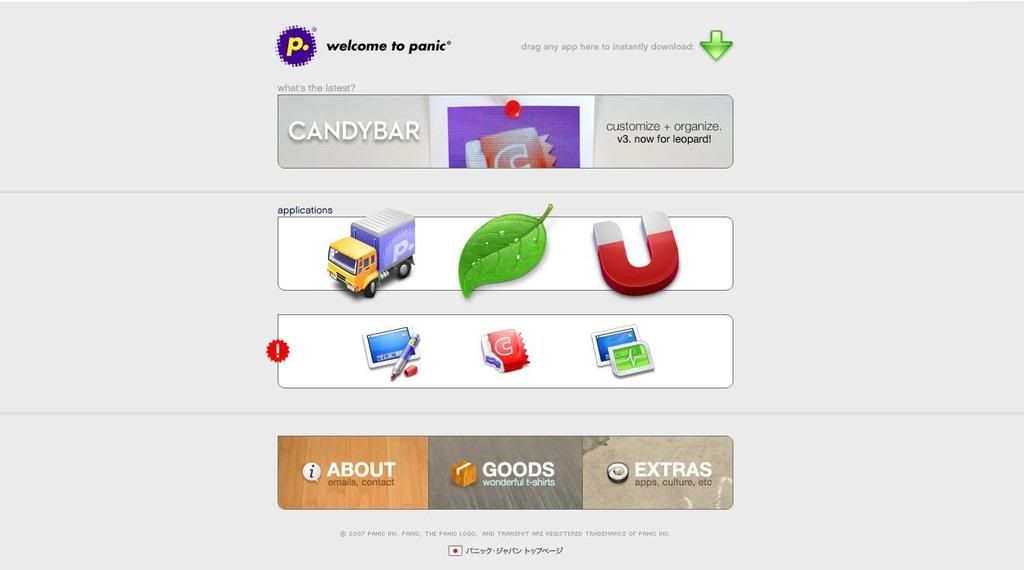
While wandering on internet I stumbled upon a great site for Mac OS users. Froom this they can easily download and install various good Mac softwares, just by dragging the any application icon from the website. Must have a look ...
Showing posts with label Softwares. Show all posts
Showing posts with label Softwares. Show all posts
Shocking good Mac software

" Best Internet Browser " shoot-out
Here is a shoot-out between the various browsers available for download from internet over the honor of the " Best Internet Browser ".
Lets look at each of the contestant..

How to make Windows XP last for the next seven years instead of Windows Vista using programs and softwares
Windows Vista may be shiny and brand new, but as plenty of PC users will tell you, sometimes newer isn't better. Many PCs simply don't have the horsepower to run the new operating system, and even those that have the juice may get bogged down by processor-and RAM-hungry Vista.
If you've got Windows XP, worry not -- you can keep it running on your hardware for years to come. As with an old car, though, if you plan to keep XP around for a while, you're going to have to spend some time maintaining it. Here are a list of softwares using which one can feel the good things of Vista on XP only.
Antispyware
Windows Vista is protected from spyware by Microsoft's Windows Defender -- and the same program is available as a free download for Windows XP users as well. Windows Defender is exactly the same on Vista as it is on XP, so you're not losing anything by not moving to Vista.
It's a good idea to have more than one piece of antispyware on your PC, whether you use Vista or XP. So double up for safety and add Lavasoft AB's Ad-Aware or Spybot Search & Destroy -- or even both -- to your arsenal.
Firewall
As for a firewall, XP's built-in firewall has one major limitation compared with Vista's -- it doesn't include outbound protection. There's a great deal of debate about whether Vista's firewall includes true outbound protection, but if you want a firewall with true, configurable outbound protection for XP, get the free Comodo Firewall Pro.
Get inbound and outbound protection from Comodo.
As Computerworld online editorial director Scot Finnie points out in Slim is in for Windows desktop firewalls, Comodo Group earns the top firewall rating for security from the independent testing site Matousec and offers a good balance between security and convenience.
Parental controls
Windows Vista includes built-in parental controls that let you filter Web sites and otherwise limit how your children use the computer. You can get similar technology for XP, although you'll have to pay for it. There are quite a few programs and services out there, but two good bets are SafeBrowse.com's Safe Eyes, which costs $50 for use on three computers, and Webroot Software Inc.'s Child Safe, $40 for use on three computers.
Sidebar and Gadgets
One of Windows Vista's niftiest features is the Sidebar and its Gadgets -- little applets capable of gathering, displaying and using live information from the Internet or from your PC. But there are plenty of ways to get the same things for free on Windows XP.
Desktop Sidebar gives XP a full-blown sidebar like Vista's, with numerous built-in gadgets, including a clock, weather gadget, performance monitor, mail checker, media player, stock tracker and more.
Two other good choices from well-known search companies are Google Desktop Gadgets and Yahoo Widgets. To use Yahoo Widgets, you'll first have to download the software. It comes with a variety of widgets, such as a weather checker, CPU monitor, stock checker and so on. But you're not stuck with just those -- there are more than 4,000 widgets available. In fact, you'll have a greater choice of Yahoo Widgets than you'd have it you were using Gadgets for the Vista Sidebar. Yahoo Widgets run in a Sidebar-like application, but can also be placed anywhere on your Windows desktop.
Google's Desktop Gadgets require that you download and use Google Desktop, which may be problematic for some people because Google Desktop is a big piece of software, primarily used for searching your PC. It includes a live indexer that runs all the time, which could possibly slow down your PC. But if you're already a Google Desktop user or want a good searching tool, the Gadgets are a nice bonus. They live in a sidebar that looks and works a lot like Windows Vista's Sidebar. You'll find plenty of Gadgets, including Real Simple Syndication readers, a stock checker, to-do list creator, weather watcher and more -- although not as many as Yahoo Widgets.
Windows Flip and Windows Flip 3D replacements
Two of the more useful new features in Windows Vista are Windows Flip and Windows Flip 3D. With them, when you switch between windows or applications using Alt-Tab (for Windows Flip), or Windows key-Tab (for Windows Flip 3D), you can see a preview of the windows, making it easier to decide to which window you want to switch. As the name suggests, Windows Flip 3D shows you the open windows in a three-dimensional view, a very nice piece of eye candy.
You can get the same features in Windows XP using a couple of software add-ons. Microsoft's free Alt-Tab Replacement Power Toy is your best choice for the Windows Flip replacement. It's two-dimensional only.
If you must have the 3-D look, you'll have to pay for it. Top Desk is shareware from Otaku Software that gives you the equivalent of Windows Flip 3D on XP. You can try it for free for 14 days. If you want to use it after that, you'll have to fork over $18.
Transparent windows and other interface tweaks
For many people, the niftiest feature of Vista's Aero interface is its transparent windows. You can get the same thing in XP, with AbsoluteWay's TweakWindow. In fact, TweakWindow gives you far more transparency-related features than Windows Vista. You can make entire windows -- not just borders -- transparent, and you have a great deal of control over the degree of transparency.
There are plenty of other extras as well, such as the ability to hide windows, to control transparency on a window-by-window basis, and even turn windows into "ghost" windows that stay on top of other windows, are transparent, and let you click through to other windows beneath them. It's shareware; registration costs $21.
If you want to go the whole hog and replace your entire desktop and interface, you can download and use Stardock Corp.'s WindowBlinds. It lets you make all kinds of changes to XP's user interface, including transparent windows and a lot more. Install the program, and you can apply a skin that makes it look like Vista, such as the Arrow skin. WindowBlinds is shareware, and costs $20 to register.
You can get much the same thing for free with Softpedia's Vista Transformation Pack. It changes the Start button, the Control Panel, system dialogs and more so that XP looks like Vista. The programs aren't exact duplicates, so you get some things with WindowBlinds that you don't get with Vista Transformation Pack, and vice versa. For instance, Vista Tranformation Pack won't give you transparent windows or Vista applets. But you can use the two programs in concert with each other to get all their features.
Be aware that installing the Vista Transformation Pack is not for the weak of heart. Follow the installation instructions extremely carefully -- they'll take some time. And just to be safe, we suggest creating a Restore Point before you begin, because you'll be mucking about with system files.
When you first install the Vista Transformation Pack, it may not look like Vista. To get the Vista look, right-click the Desktop, choose Properties --> Appearance, and from the "Windows and buttons" drop-down list choose Windows Aero. You can also use Vista wallpaper by clicking the Desktop tab and scrolling through the backgrounds. Note that the Vista wallpaper will have odd numbers, such as "img19," instead of names.
Desktop search
Vista's built-in search is vastly improved over XP's and may well be the operating system's biggest productivity booster. You can get the equivalent with any one of a number of free desktop search programs, including Google Desktop, Copernic Desktop Search or Microsoft's own Windows Desktop Search.
Network management
Vista includes plenty of networking improvements over XP, including the superb Network Map that displays every object on a network and provides detailed information about it. You can't get the exact equivalent of this in XP, but you can come close with free Network Magic from Pure Networks Inc.
It includes a Vista-like network map, as well as plenty of other extras, such as wizards that walk you through the process of adding network devices and fixing broken network connections. In fact, in some ways, it goes beyond what Vista does, including creating reports of your network activity and testing bandwidth. There are also for-pay versions of the software, but you don't really need them, unless you want advanced features such as remote access to your network's files.
Start-up screens
Finally, if for some bizarre reason you're a big fan of the Windows Vista boot and log-on screens, you can mimic them in XP with some free tools from Stardock. First, download Logon Studio, which lets you customize your log-on screen. Once you do that, you can apply a Vista-like log-on screen called Vista Reaction. To mimic Vista's boot screen, get BootSkin and use the Real Vista boot screen.


Lively...Make yourself virtualy alive
Google has just launched Lively ,a new product of google which allows you to chat with others and create your own virtual rooms in a cool 3d World.Unlike other google products ,you need to download and install a software and then you can go to lively.com and join the rooms.
You can also add the lively room to your website and invite friends to chat with you and help you decorate it.You can employ your avatar.use photos and videos on lively.
For more info click here
To download click here
Demo

Remote control your desktop from anywhere for free
Nowadays it has become a need of to access data at anytime, from anywhere. One cannot carry all of his data along with him but one can get from his home computer very easily . Below are the various free options which one can think of using to ease of his life.
Logmein
No doubt the easiest service that can be use to remote control the computer. Just go to www.logmein.com, register yourself and then just add different computers, which you want to access. When you will click on Add Computers to add the computer which you want to access, it downloads a software and installs it on the computer. After the whole procedure is complete, the new computer is displayed in the account. The site offers a wide range of services ranging from free( which is only enables to access one computer that too in presentation mode) to commercial services like remote support.
GotomyPc
It is same as Logmein.com but doesnot has a trial version instead of free version.
For more info click here
TeamViewer
The best part of this software is, it is free for personal use. You just need to download it both the computers, connected to internet, which you want to share and run it. It require authentication on both the computer every time when it is run, that means that one can only use it if he wants to share his desktop with is friend on the other computer. But the software is secure because a new Username ID and Password and generated each time it is run while the computers are online.
For more info click here
Avvenu
Recently acquired by Nokia, allows one to easy control and share the computer from other computer or mobile phone. Its free and involves donwloading and installation of the software and also allows free file sharing.
For more info click here
Remotely Anywhere
Fast, secure system administration FROM ANYWHERE. RemotelyAnywhere 8 offers industry leading security and performance for remote administration. It is two flavors, Workstation Edition and Server Edition. It is available for 30 day trial and has the following features:-
» Vista Compatible
» Disk Mapping
» 64-bit Compatible
» System Dashboard
» Guest Invite
» Public Key improvements
» PDA Remote Control
» Access via Any Web browser
» Easy Enterprise Deployment
» SSH & FTP
» File Transfer & Synchronization
» Automatic Alerts
For more info click here
VNC
The common name heard when the topic of remote access comes. For all who dont know what is VNC, it is Virtual Network Computing and is based on server/client architecture. The server part of the VNC is installed and configured and installed on the computer which is to be access remotely and the client of can be used on any computer from which one wants to access the remote computer. VNC comes in different flavors, but all of them work in the same way. It is free to download can be used on different flavors of Operating System like Windows XP,Windows Vista, Linux,Unix. Also using while using it you have to make sure the particular ports of VNC that is 5800 & 5900 are open and forwarded properly on your router. Click here for more info on Port Forwarding.
One can choose any of the following flavors of VNC:-
» UltraVNC
» RealVnc
» TightVnc
Below are various options on MacOS
Clients (Mac OS X):
» JollysFastVNC - currently in alpha, but already the best client out there in terms of speed and international keyboard support.
» VNCDimension seems to have partial support for non-US keyboards (but no dead keys) and very fast graphical updates.
» Chicken of the VNC - No international key support, works OK with the built-in Mac OS X server.
* VNCThing - read my blog entry for more (and a link to the source code).
» Workspot modified VNC
Clients (Other):
» FlashVNC - a Flash viewer.
» MochaVNC - for Palm and Pocket PC, supports the newer procotol versions and has a built-in SSH tunneler.
» PVNC, a VNC client for the PlayStation Portable
» DirectVNC, fbvnc - framebuffer-based clients.
» Palm VNC - with server-side scaling extensions
» Enhanced Full-Screen Clients
» SSHVNC - a combined client
Servers:
» Schnitz Remote
» Alkit VNC - allows single-window sharing.
» RealVNC - the original (and still the reference) implementation. Also has the most efficient client (old homepage)
» Vine Server (formerly called OSXvnc) - native Mac OS X server, which now supports multiple simultaneous remote sessions
» Ultra VNC Single-Click Server - a nice, customizable Windows server that helpdesk staff can e-mail to someone in need of help.
» J2ME VNC - for MIDP/J2ME
» MetaVNC, an intriguing way to share single windows
Tools and Libraries:
» VNC Snapshot - can take screenshots of a section of the display and save them in JPEG format.
» VNCj - a nice way to serve Java AWT applications.
» Vnc2swf - a Flash recording tool, which now has an editing tool available.
» LibVNCServer - also has a client library
» perlVNC - fear.
» PyVNC - a Python VNC client
» VNC Reflector
Subscribe to:
Posts (Atom)


 Posts


 RSS Feed (xml)

